

How to Use Mamlio
Mamlio helps you practice reading, listening, and speaking with AI.
Start from the main screen
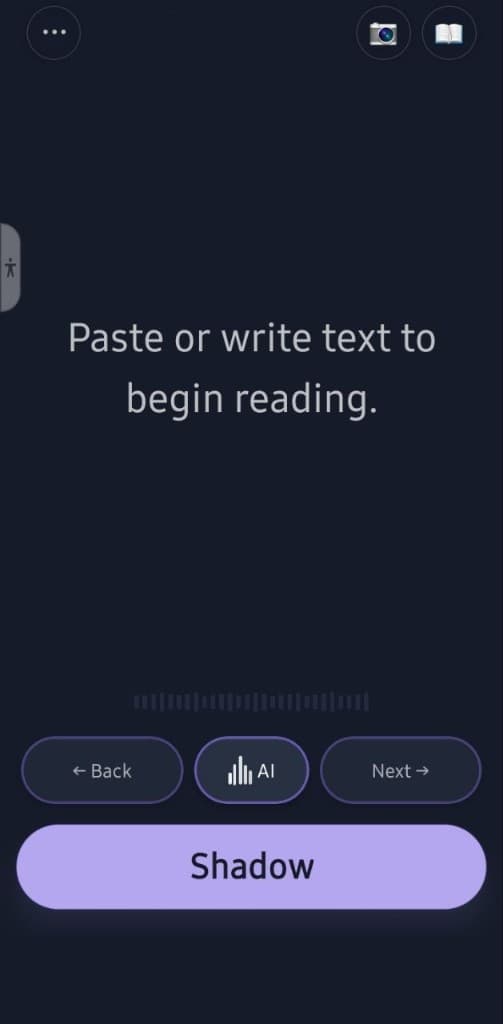
When you open Mamlio, you will see the main reading screen. If there is no text yet, the app will ask you to paste or write text to begin reading.
Open the menu
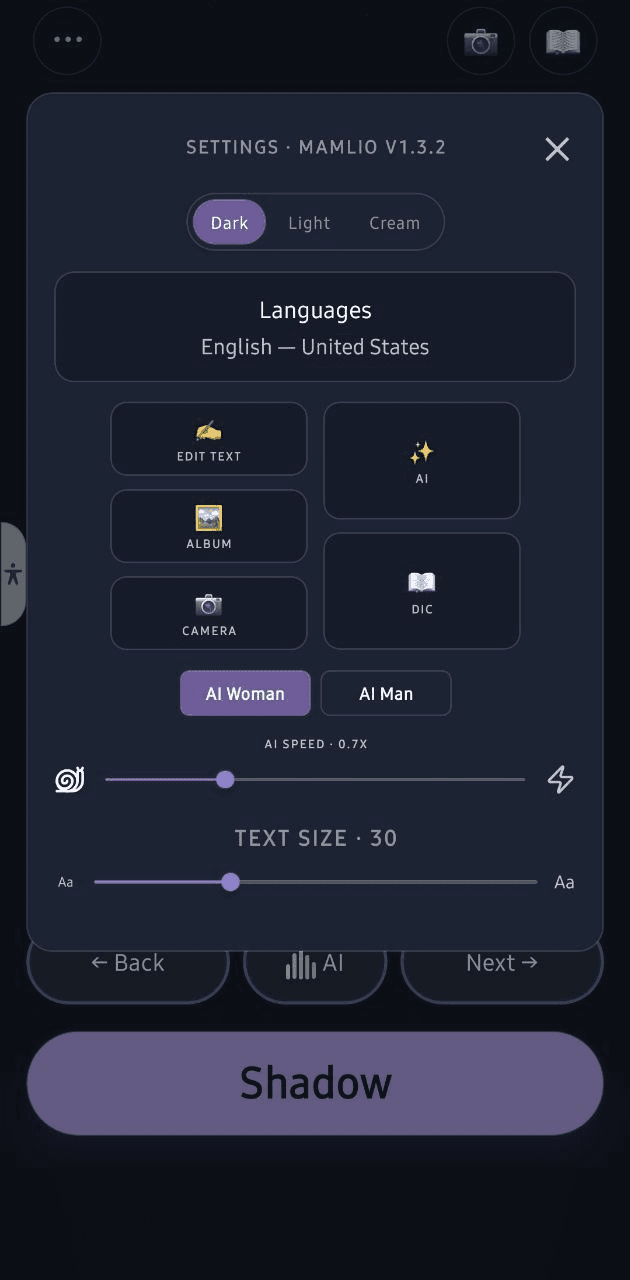
Tap the three-dot button at the top left of the screen to open the menu and settings.
Choose how to add text
From the menu, you can choose different ways to add practice text.
Edit Text
Type or paste your own text and use it for reading practice.
AI
Use AI to help create or prepare text for practice.
Album
Choose an image from your phone gallery and use the text from it for practice.
Camera
Take a picture with your camera and use the text from it for practice.
Use Shadow practice
Tap Shadow to record your voice while shadowing the AI sentence. Hear your recording played back and repeat at your own pace.
Learn more about AI speaking practice
Use Back and Next
Use Back and Next to move between sentences or parts of the text.
Practice with AI voice
After adding text, tap the AI button to hear the text read aloud. Listen first, then repeat the sentence out loud.
Settings
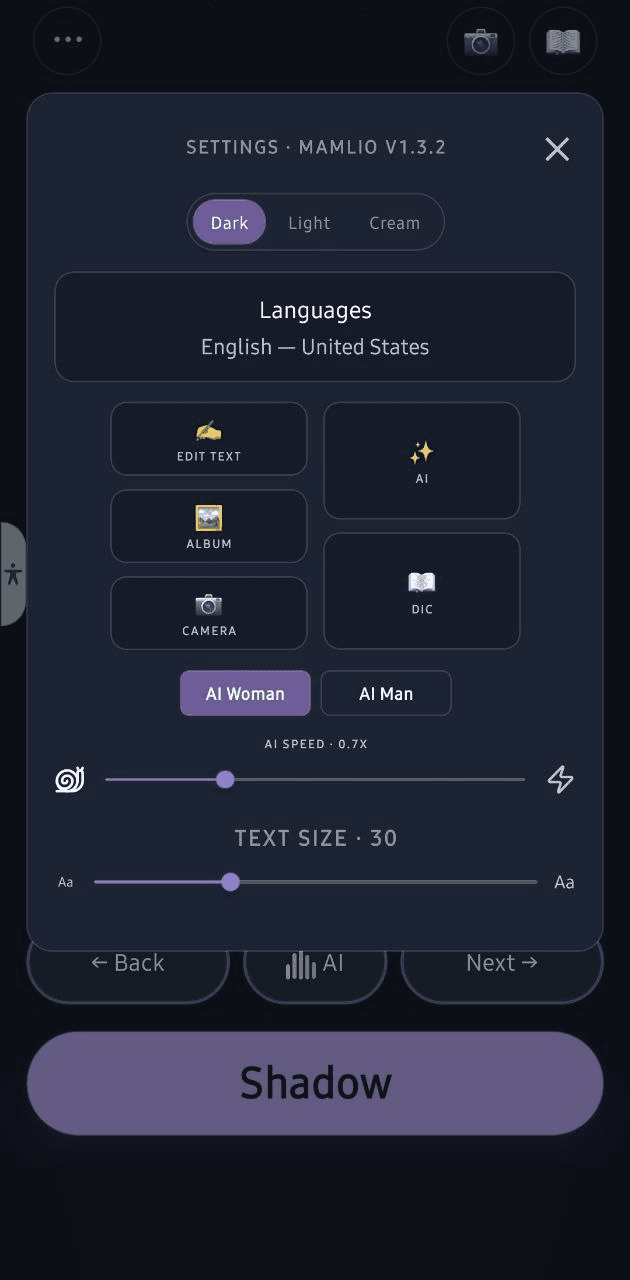
In the settings menu, you can adjust how Mamlio works for you.
Theme
Choose Dark, Light, or Cream mode.
Text Size
Make the reading text smaller or larger.
AI Reading Speed
Make the AI read slower or faster.
AI Voice
Choose a Female or Male AI voice.
Dictionary
Use the dictionary to check word meanings while reading.
Choose your AI Generation Language
Before practicing, you can choose the language Mamlio uses to generate AI practice content.
Open Settings and tap Languages, or go to Chat with AI and use AI Generation Language. Both places control the same saved setting.
Mamlio currently generates speaking practice only for active languages. Additional languages are in progress and are not all available for speaking practice yet.
The language list is scrollable and ordered alphabetically. Tap a language, then tap Accept to save it. You can also close the window with X without saving.
Your selected language stays saved after you close and reopen the app.
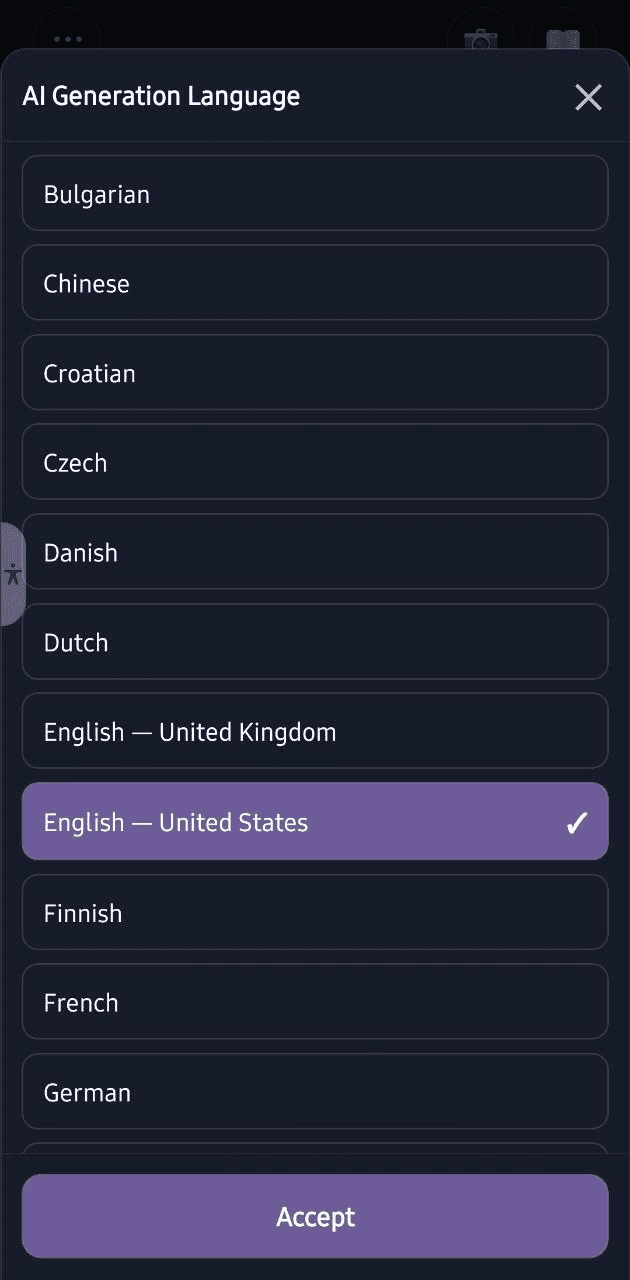
Create practice text with AI
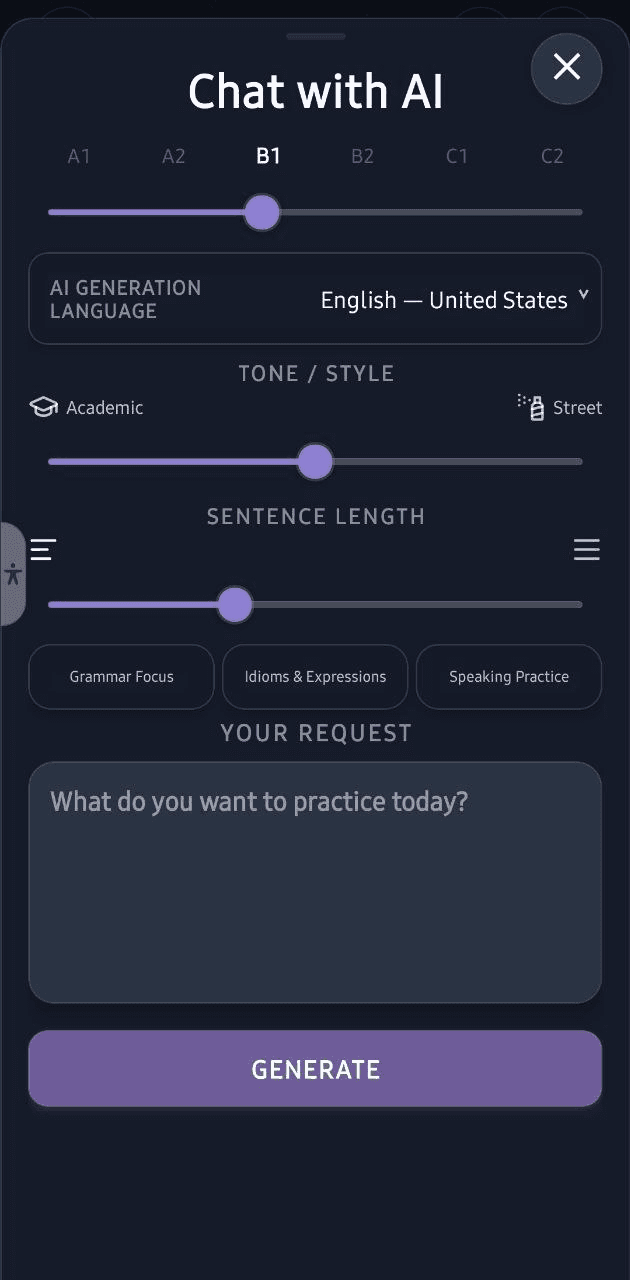
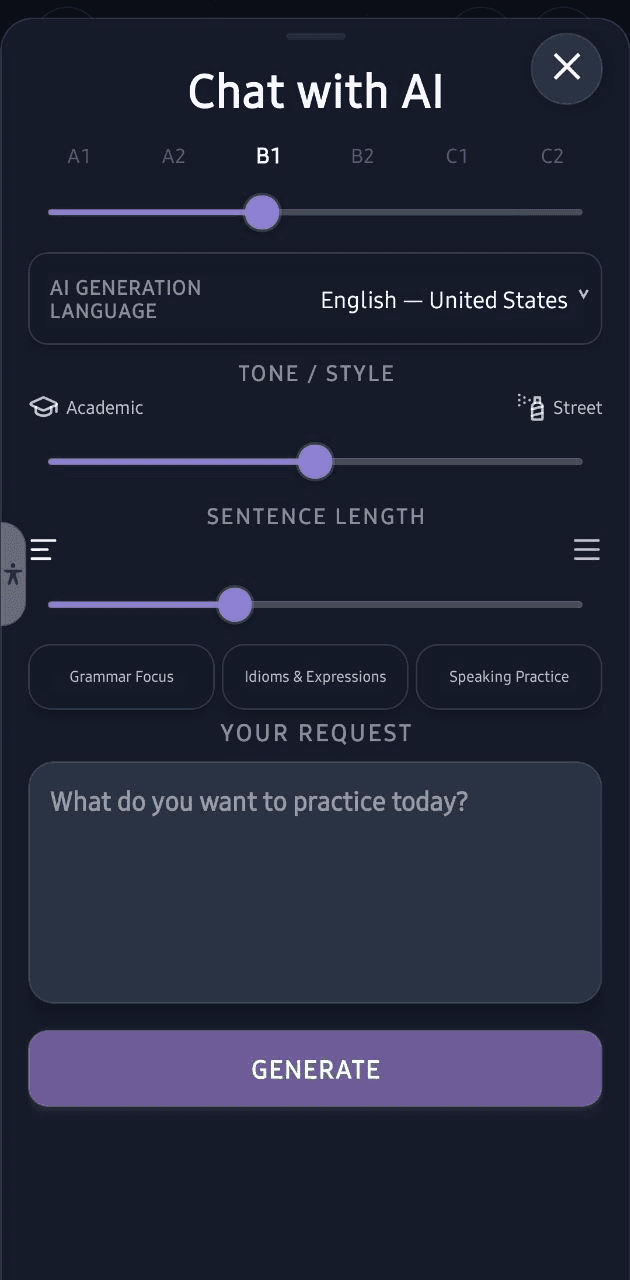
Tap AI to create custom practice text for your level and learning goal.
Choose your level
Use the A1 to C2 slider to choose your current language level. This helps Mamlio create text that is easier or more challenging for you.
Choose the tone and style
Move the Tone / Style slider toward Academic for more formal language, or toward Street for more natural everyday language.
Choose sentence length
Use the Sentence Length slider to make the practice sentences shorter or longer.
Grammar Focus
Use Grammar Focus when you want the generated text to include more grammar practice.
Idioms & Expressions
Use Idioms & Expressions when you want to practice common phrases, expressions, and natural language patterns.
Speaking Practice
Use Speaking Practice when you want the text to focus more on conversation and real-life speaking.
Write your request
In the request box, explain what you want to practice. You can write the topic, the situation, the language goal, or the type of story or conversation you want.
Generate
Tap Generate, and Mamlio will create practice text based on your level, style, sentence length, and request.
Example requests
You can write requests like these:
- Create a short conversation for ordering coffee.
- Make a simple story about traveling.
- Give me B1 practice text about a job interview.
- Create speaking practice for daily conversation.
- Make short sentences with past tense grammar.
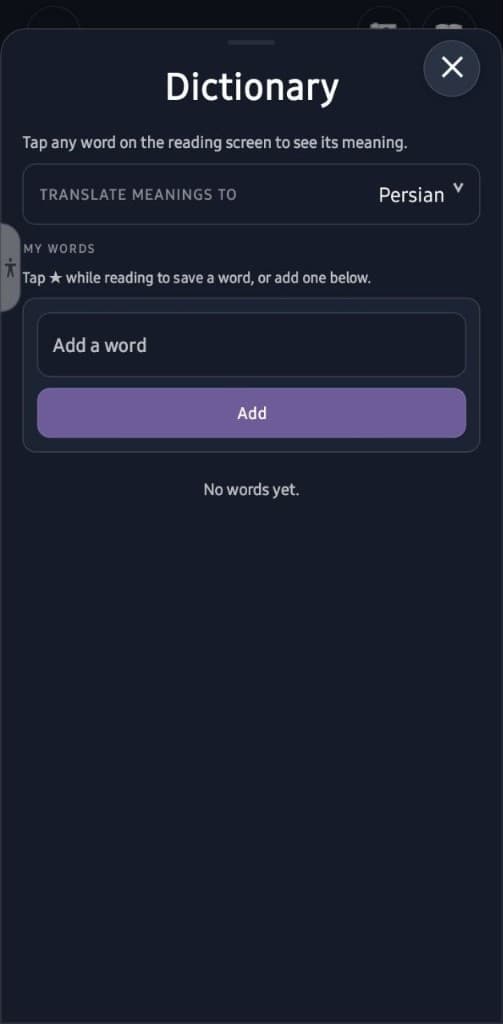
Dictionary
The Dictionary helps you understand and remember words while you practice reading.
Check word meanings
While reading, press and hold a word to see its meaning.
Translation languages
In the Dictionary, you can choose which language Mamlio should use to translate word meanings.
My Words list
Words you check can be saved in My Words, so you can review them later.
Up to 200 words
Mamlio can keep a list of up to 200 saved words.
Practice saved words
When AI creates new practice text, Mamlio can reuse words from My Words to help you review them naturally.
Automatic cleanup
After a saved word has been used for practice 3 times, it can be removed automatically.
Add your own words
You can also type and add your own words to My Words.
Remove words
Use the X button next to a word to remove it from your list.
Supported meaning languages
- Arabic
- English
- French
- German
- Hindi
- Korean
- Persian
- Portuguese
- Russian
- Spanish
- Turkish
- Ukrainian
- Urdu
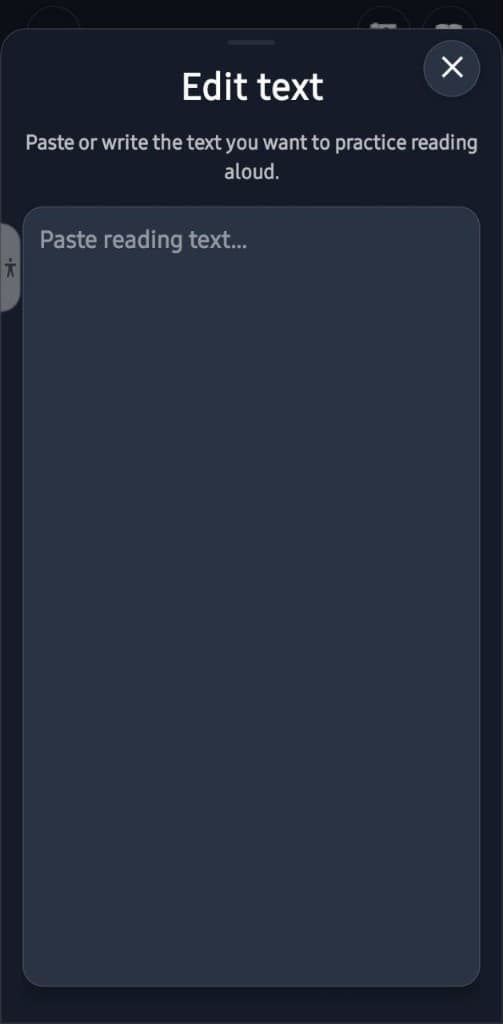
Edit Text
Use Edit Text when you want to type, paste, or change the text you want to practice.
Paste your own text
Paste any text you want to practice reading aloud.
Write text manually
You can type your own practice text directly inside the app.
Edit existing text
You can change parts of the text before you start practicing.
Practice your text
After adding or editing the text, return to the reading screen and use AI, Shadow, Back, and Next to practice.
Best way to practice
Start with short text. Listen first, repeat several times, then move to the next sentence. Practicing a few minutes every day is better than practicing too much at once.